
Introduction
Any online sportsbook operator can offer top-notch eSports content by integrating Oddin’s web solution alongside their existing betting offer. With a modern user interface and unparalleled user experience, Oddin’s eSports Sportsbook Solution is the most engaging one-stop-shop for any eSports betting enthusiast. Besides providing the best odds' availability in live eSports matches, punters can also optionally enjoy CS2 Duels, a fast-paced 1-on-1 CS2 competition, eFootball, a 24/7 1-on-1 FIFA game tournament, eBasketball, and eCricket.

1. Sports and Tournaments filtering
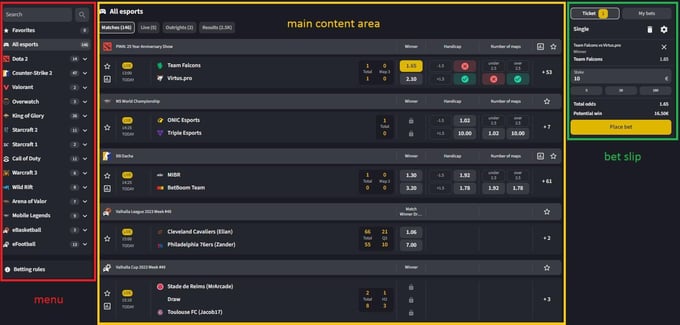
The Sports and Tournaments menu is located on the left side of the eSports Sportsbook Solution. Each sport and tournament will have the number of available matches within it displayed on the right side of the menu. Punters can filter the display of the matches appearing in the main content area either by selecting All sports, one or more individual sports, one or more individual tournaments, or a mix of sports tournaments.
Regardless of the filtering, the list of matches in the main content area will always be ordered chronologically, with LIVE matches displayed on top. The matches will also be grouped by tournament.
1.1. All sports (default setting)
To select all sports, either tick the checkbox to the left of “All sports”. All available matches will be displayed in the main area, ordered chronologically and grouped by tournament, with LIVE matches on top.
1.2. Individual sports
Click only for the sport you want. The matches from the selected sports will be displayed in the main area, ordered chronologically and grouped by tournament, with LIVE matches on top.
1.3 Individual tournaments
First, display all the tournaments for a sport by clicking on the text of the sport name. When the tournaments for the sport are displayed, click on the desired tournament to display the matches. The matches from the selected tournament will be displayed in the main area, ordered chronologically and grouped by tournament, with LIVE matches on top.
2. Match list
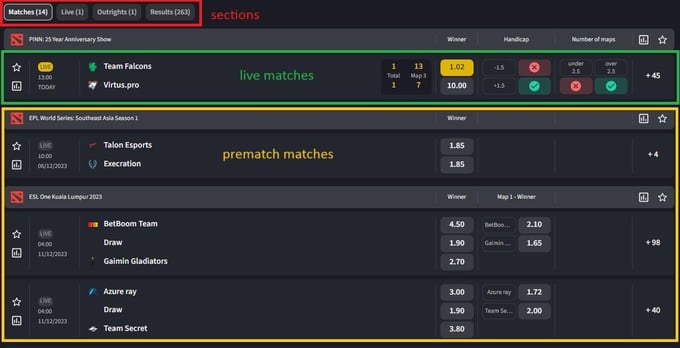
The list of matches is located in the main content area. Punters can choose between 4 sections:
- Matches - pre-match and live matches together
- Live - all currently live matches
- Outrights - all current outright market events
- Results - finished (resulted) matches
Each section can be filtered through the Sports and Tournaments menu.
2.1. Listed prematch match(es)

- The tournament under which the match belongs to:
- ★ icon: to place the tournament under Favourites
- The match(es):
- ★ icon: to place the match under Favourites
- Match time and date: “TODAY” instead of the date if the match start is today
- LIVE greyed-out tag: indicating that the match will be offered live
- Competitors: competitor names, click anywhere in the name field to get to the individual match page
- Main odds: usually Winner, Handicap, and/or Maps - clicking on an odds value adds it as a selection on the bet slip
- The number of all markets on offer: click to get to the individual match page
2.2. Listed live match(es)

The same information as for pre-match matches, but with additions:
- LIVE colourful tag: indicating that the match is currently live
- Score: live period results are displayed
- ► PLAY button: opens the video stream and scoreboard of the match within the match list
2.3. Listed resulted match(es)

The same information as for pre-match matches, but with changes/additions:
- Score: final score of the match is displayed
- Main market results: displayed as WON or LOST
- > button: click to get to the individual resulted match page
3. Individual match page
3.1. Prematch match page

3.1.1. Header
- Top section:
- ← back link: to get back to the match list
- Stats button: to open the Statistics Widgets (team, match, and tournament statistics) where available
- ★ icon: to make the match your Favourite
- X expand icon: to open the sportsbook in full-screen
- Upper left section:
- Tournament name
- Competitors: the left one is home, the right one away
- Time and date of the match
- Main section - odds groups menu:
- ALL: all available odds for this match
- MATCH: match odds
- MAP (1-7): map odds
3.1.2. Odds
Pre-match odds section with the listed markets and odds. It can be filtered through the odds groups menu. Clicking on an odds value adds it as a selection on the bet slip.
3.2. Live match page

The Live match page consists of all the elements as the pre-match page, with the following changes/additions:
3.2.1. Header
- Live stats button: to open the Live stats Widgets instead of the video stream, where available
- Delayed live video stream of the match
- In-play scoreboard with live updated period scores
3.2.2. Odds
Live odds section with the listed markets and odds updating in real time. It can be filtered through the odds groups menu. Clicking on an odds value adds it as a selection on the bet slip.
3.3. Resulted match page

The Resulted match page consists of all the elements as the pre-match page, with the following changes/additions:
3.3.1. Header
- Scoreboard with final period and map scores
3.3.2. Odds
Resulted odds section with the listed markets and odds, indicating the winning and losing outcomes (WON / LOST) for every market. Can be filtered through the odds groups menu.
4. Bet slip
You can place either single or combo (combination/aggregator) bets within Oddin’s Integrated Sportsbook. The bet slip is divided into “Ticket” and “Bet history” sections.
4.1. Ticket
- Ticket acceptance settings ☸ - for any selection on the bet slip:
- Always ask: on odds change, the punter needs to confirm the bet on changed odds by clicking on “Accept changes”
- Accept higher odds changes: odds changes to higher odds will be automatically accepted on the bet slip
- Accept any odds change: any change of the odds will be accepted on the bet slip
- Custom stake palette: setup up to 3 default stake values
- Remove all: all selections to be removed from the bet slip
- Single / Combo: the type of bet to be placed based on the selection(s) on the bet slip
- Total odds: the total odds value of the ticket to be placed
- Stake: the amount bet by the punter with the active currency displayed
- Place bet / Accept changes / Limits exceeded button - confirming different actions on the bet slip:
- Place bet: punter confirms the bet placement; showing also the possible win amount (“To return”)
- Accept changes: punter accepts the odds changes; displays based on the ticket acceptance settings
- Limits exceeded: turns grey (not clickable) and displays the limit that is breached (max./min. stake)
- Ticket was accepted / rejected: a notification of the ticket being accepted or rejected
- Bet slip messages:
- Odds or statuses have changed!: appears on any odds change if the “Always ask” option is selected in the ticket acceptance settings; shows up also if “Accept higher odds changes” is selected and the odds change to a lower value
- Total min odds are: appears when the total odds on the bet slip are lower than allowed
4.2. Bet history
- Date from/to: the time frame for the displayed tickets
- Search tickets 🔍: search by team names
- Pending tickets: open tickets that have not yet been resulted
- History tickets: all past resulted tickets
5. Mobile view
The mobile view offers the same functionality as the view on devices with wider screens. The user interface features allow for an enhanced mobile user experience:
- Sports menu is on top
- Bet slip and bet history are on the bottom
- Tapping on a match will open its individual page
- Adapted for long scrolling