
Handicap market information
Handicap markets can be communicated differently in various Oddin.gg betting products:
- Vanilla: default handicap sign
- Inverted: inverted handicap sign (used by most booking operators)
| Odds Feed & OTS | Back-office platform (Freya) | iFrame visualization | iFrame API (transactions) |
| Vanilla or Inverted (configurable) | Inverted | Inverted + Away Inverted | Vanilla |
Example: Team handicap +/–1.5:
| Team | Odds Feed & OTS INVERTED |
Back-office platform (Freya) INVERTED |
iFrame visualization INVERTED + AWAY INVERTED |
iFrame API (transactions) VANILLA |
| home | handicap=-1.5 | handicap=-1.5 | handicap=-1.5 | handicap=+1.5 |
| home | handicap=+1.5 | handicap=+1.5 | handicap=+1.5 | handicap=-1.5 |
| away | handicap=-1.5 | handicap=-1.5 | handicap=+1.5 | handicap=+1.5 |
| away | handicap=+1.5 | handicap=+1.5 | handicap=-1.5 | handicap=-1.5 |
Tickets (available to OTS and iFrame clients)
List
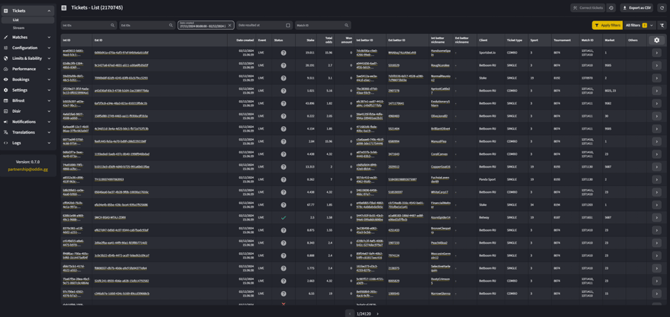
A list of all clients' betting tickets. The displayed columns can be switched on and off by using the cogwheel icon (☸).
EXPORT AS CSV: trigger an export of the filtered tickets; can be done in 90-day timeframes.
- Int ID: Oddin.gg internal ticket ID
- Ext ID: client's ticket ID
- Date Created: the date and time when the bet was placed
- Event: the type of the match
- Live—live + prematch
- Prematch—prematch-only
- Status: the status of the whole ticket
- Rejected—did not go through the limits setup or the state/change of the odds
- Won—The ticket is winning
- Lost—The ticket is lost
- Voided—the ticket is voided (user receives his stake bet back)
- Accepted—the ticket has not been resolved yet, but it has been placed
- Forced—only applies to OTS clients (not iFrame) when clients want to accept the ticket even when Oddin.gg has rejected it
- Stake: the amount the user has bet
- Total Odds: total odds for all selections that are on the ticket
- Won Amount: shows how much the user has won if the status is WON (including the stake)
- Int Bettor ID: Oddin.gg internal bettor ID
- Ext Bettor ID: client's bettor ID
- Int Bettor Nickname: Oddin.gg internal bettor nickname
- Ext Bettor Nickname: client's bettor nickname
- Client: client’s account ID
- Ticket Type: the type of ticket
- Single—only one selection on the ticket
- Combo—more than one selection on the ticket
- Cross—only applies for OTS (not iFrame) clients; more than one selection on the ticket, with a mix of Oddin.gg and foreign selections
- Sport: sport ID—shows the Esport name on hover
- Tournament: tournament ID – shows the tournament name on hover
- Match ID: Match ID—shows the match name (competitors) on hover
- Market: market ID—shows the market name on hover
- Others: ticket cashout indicator – if present, it shows cashout details on hover
ℹ Clients can now use EXT Bettor ID and EXT Ticket ID to create a ticket/bettor detail URL on their side to implement direct links to individual tickets or bettors in Oddin.gg back-office.
URL format:
- HOST: /tickets/ext?externalId={EXTERNAL_ID}&clientId={CLIENT_ID}
EXAMPLE:
https://client-integration.test.oddin.dev/feature/ext-id-url/tickets/ext?externalId=ABC123&clientId=42
- HOST: /performance/bettor/ext?externalId={EXTERNAL_ID}&clientId={CLIENT_ID}
EXAMPLE:https://client-integration.test.oddin.dev/feature/ext-id-url/performance/bettor/ext?externalId=BET-9X7&clientId=42
Ticket status
| Filter entry | Status | Description |
| PENDING | PEN | The betting ticket is waiting to be accepted or rejected. |
| ACCEPTED | ACC | The betting ticket has passed the verification and is accepted. |
| REJECTED | REJ [ reason ] |
The betting ticket has not passed the verification and is rejected. Please see below for different reject reasons. |
| WON | WON | The betting ticket has been resulted as won. |
| LOST | LOS | The betting ticket has been resulted as lost. |
| VOIDED | VOI | The betting ticket has been resulted as voided. |
| FORCE VOIDED | F VOI | The betting ticket has been resulted as voided based on the client’s OTS input. |
Ticket rejection reasons
| Filter entry | Status | Description |
| BETTOR LIABILITY | REJ BETLIA | The bettor has reached their maximum liability on a match, so their tickets are being rejected. Determined by the risk tier and calculated as follows: max. liability * bet factor * BOS/OAF. |
| BETTOR LIMIT* | REJ BetLim | The maximum market limit for the bettor has been reached. Calculated as follows: max. liability * bet factor * BOS/OAF * market factor. |
| EVENT LIABILITY | REJ EvtLia | The liability for the match has been reached by all users. |
| INTERNAL ERROR | REJ IntErr | Internal system error; bets are rejected. |
| MARKET LIABILITY | REJ MktLia | The market liability has been reached. Determined by the market factor * max. liability. |
| MAX PAYOUT | REJ MaxPay | The maximum payout on a combo bet has been reached. |
| ODDS | REJ ODDS | The odds have changed (live betting). |
| ODDS OR STATE | REJ OOS | The odds or match status has changed. |
| STAKE TOO HIGH | REJ StkHhg | The stake is too high. |
| STAKE TOO LOW | REJ StkLow | The stake is too low. |
| STATE | REJ STATE | The status of the match has changed (live betting). |
| TRADER CANCEL | REJ Cancel | Our trader cancelled the betting ticket. |
| MARKET BETTOR LIABILITY | REJ MBetLia | The bettor has reached their maximum liability on a market, so their tickets are being rejected. Determined by the risk tier and calculated as follows: max. liability * bet factor * BOS/OAF * market factor. |
| CORRELATED MARKETS | REJ CorrMkt | A combo bet was attempted on selections from correlated markets, so the ticket was rejected. |
| CORRELATED TEAMS | REJ CorrTm | A combo bet was attempted on selections featuring correlated teams, so the ticket was rejected. |
* This rejection reason has been deprecated and replaced by MARKET BETTOR LIABILITY.
Ticket detail
Shows more information about a specific bet.
This section can also be used to make corrections—if, for some reason, a ticket is resolved incorrectly, it can be adjusted through the Ticket Control > Edit button by editing specific selections and saving the changed state. This will initiate the transaction if all selections have been chosen.
Hovering on the Market ID will reveal the market name, market type ID, and the relevant specifier.
Stream
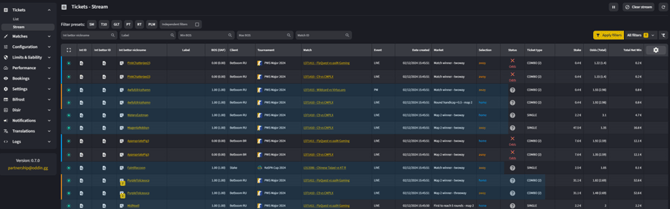
A live stream of betting tickets in prematch and live. The displayed columns can be switched on and off by using the cogwheel icon (☸).
- Int ID: Oddin.gg ticket ID
- Int Bettor ID: Oddin.gg bettor ID
- Int Bettor Nickname: Oddin.gg bettor nickname
- Label: bettor’s label (VIP, Suspicious, Live…)
- BOS (OAF): Bettor’s Oddin Score (Over Ask Factor), shows the limited (0.1–1) or increased (1–10) user’s liability from the bettor detail section
- Client: client ID
- Tournament: the tournament name and title
- Match: Oddin.gg match ID
- Event: the type of the match:
- Live – live + prematch
- Prematch – prematch-only
- Date Created: when the bet was placed
- Market: the market the user has bet on
- Selection: the selection on the market the user has bet on
- Status: the status of the ticket (see Ticket status and Ticket rejection reasons for details)
- Ticket type: the type of the ticket
- Stake: the amount the user has bet
- Odds (Total): the odds for that specific selection; in the case of combo bets, the odds for the whole combo bet are displayed in brackets ()
- Total Net Win: the amount the user can win without the stake, i.e., profit
Matches (available to ALL clients)

Timeline
See the detailed status of all matches with odds currently available in the system.
Displayed information in the timeline:
- Current match status icon: Not started, Started, Canceled, Closed
- Fixture: match date and time, match tournament, coverage (offered LIVE or not), competitors
- Match winner odds (2- or 3-way)
- Match ID with Map status
- Liability and Volume
- Market status—number: Active markets, Suspended markets, Resulted markets
Can be filtered by:
- Sport
- Tournament
- Match ID
- Match Type: PREMATCH & LIVE, PREMATCH, LIVE
- Match Status: NOT STARTED, STARTED, CANCELED, CLOSED
- Date Range
Possible match sorting by NEWEST, OLDEST
Match details
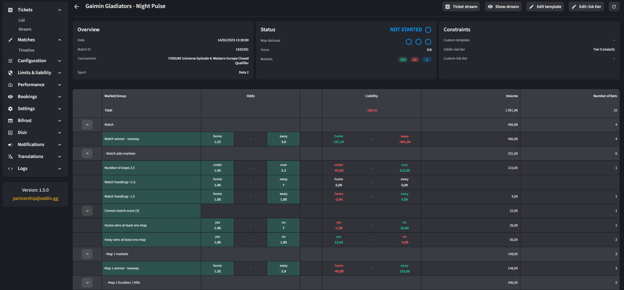
Accessed by clicking > on the right side of the match entry in the Timeline.
In addition to the fixed match information on the Timeline, you can review the following:
- Edit template: set a custom template (market and odds configuration) for the match 🖊
- Edit risk tier: set a custom risk tier for the match 🖊
- Oddin risk tier: the tournament risk tier the match belongs to
- Custom risk tier: the risk tier set by the client
- Odds & liability table: review available odds for the match
During a live match, there is even more information available:
- Score: live match score—monitor the match score in real time
- Show stream: the delayed video stream of the match being played
- Set custom streams: optionally set your own video stream URL for each language
- Odds & liability table:
- Market Group and Odds—all changes on the betting markets and odds updated in real time
- Liability, Volume, and Number of bets—match risk management information if available
- Ticket stream: the bets being placed in real time with the selections from the match
Additional insights into betting activity
Beyond the core betting details, you can also gain deeper insights into the distribution of liability and volume across different markets and selections. Each selection in the Odds column has a corresponding value in the Liability column:
- Green numbers indicate that if this selection wins, the client will earn money.
- Red numbers with a "-" sign mean the client will need to pay out more than they accepted on this selection.
- Liability values always reflect net outcomes of the final result.
- Both single bets and respective parts of combo bets are accounted for.
In the Volume column, you can see the total stake of accepted bets on a specific market. The Number of Bets column displays the total count of bets placed on that market. Lighter grey segments indicate the summed-up volume and number of bets for the specified market group.
Configuration (available to ALL clients)
Templates
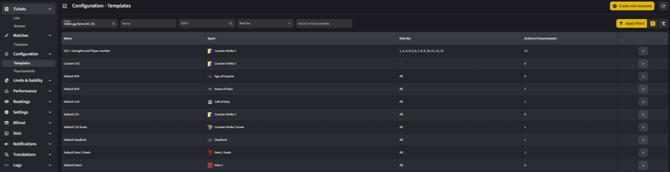
A template is a configuration for markets and odds for an individual sport and tournament tier(s).
CREATE NEW TEMPLATE: creates a new custom template for the selected sport.
- Default templates
- Present for all available Oddin.gg sports.
- Used if no other templates are set up and defined for a sport.
- Cannot be edited.
- Custom templates
- Setting up is optional.
- Default templates can be copied to create custom templates.
- Each custom template can now have the margin set through "Set template margin" button; when a margin is selected, it will be applied to all markets, live and prematch.
- Each custom template allows the following configuration:
- The sport it will apply to
- The risk tiers it will apply to
- Markets that can be disabled or enabled
- Over round (margin) for each market type/variant
- Minimum odds that will be sent in the feed or shown in the iFrame front-end
- Maximum odds that will be sent in the feed or shown in the iFrame front-end
- Min. suspend rules – the limit at which the odds become suspended
Tournaments
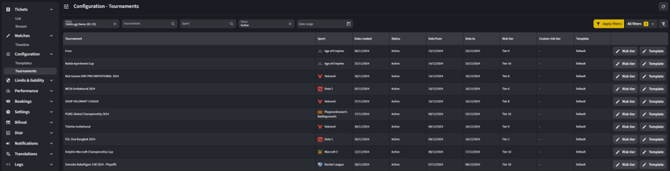
A custom tournament risk tier can be set, and a specific template can be assigned to a tournament:
- Custom risk tier: Oddin.gg sets up the default risk tiers for all tournaments. Clients have the option to change the risk tier for every individual tournament in this section to follow their chosen limits and templates (not recommended without the input of Oddin.gg Trading team)
- Template: a custom template without tiers can be assigned to a specific tournament if needed
The tournaments without assigned templates will automatically use the configuration from the last custom template created for their risk tier. If there is no custom template for the tournament’s risk tier, the default template is used.
Limits & Liability (available to OTS and iFrame clients)
Limits
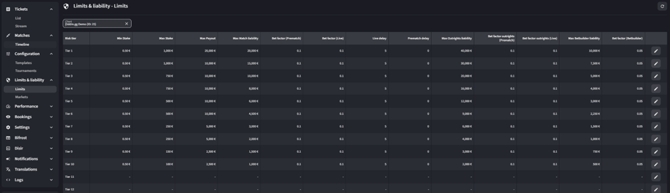
Liability limits determine what amount users can bet and win on each match, depending on its risk tier. The limits are separate for matches and for Outrights (long-term markets).
- Risk tier: matches belong to pre-set tournament tiers 1 to 10, 1 being the one with the least risk and 10 being the one with the most risk. The risk depends on different factors, such as the quality and history of the tournament, competitors, etc.
- Min stake: The minimum amount a user can bet. If they bet below this amount, the bet will be automatically rejected.
- Max stake: The maximum amount a user can bet. If they bet over this amount, the bet will be automatically rejected.
- Max payout: The maximum amount of winnings (stake + profit) a user can get for one bet. This applies to the whole bet slip (single and combo tickets).
- Max Match liability: The total amount all the users can win on one match (profit only).
- Bet factor (pre-match): The factor that determines how much a user can win (profit only) in a pre-match event from the maximum match liability (for example, 0.1 * 20,000 = 2,000).
- Bet factor (live): The factor that determines how much a user can win (profit only) in a live event from the maximum match liability (for example, 0.1 * 20,000 = 2,000).
- Live delay: how many seconds pass before the bet gets accepted/rejected for live events.
- Prematch delay: how many seconds pass before the bet gets accepted/rejected for pre-match events.
- Maximum Outrights liability: The total amount all the users can win on one Outright market (profit only).
- Bet factor outrights (pre-match): The factor that determines how much a user can win (profit only) in a pre-match Outright market from the maximum Outrights liability (for example, 0.1 * 40,000 = 4,000).
- Bet factor outrights (live): The factor that determines how much a user can win (profit only) in a live Outright market from the maximum Outrights liability (for example, 0.1 * 40,000 = 4,000).
- Max Betbuilder liability: The factor that determines how much a user can win from Betbuilder bets.
- Bet factor (Betbuilder): The factor that determines how much a user can win (profit only) in BetBuilder based on the maximum BetBuilder liability.
Pendings
Client-level conditional pending rules let you review and fine-tune the default pending (bet delay) applied to bets when specific conditions are met—for a given client, sport, tournament, match, market type, or a combination of these.
The section follows the standard settings-platform layout: you can filter, add, and edit rules.
Access depends on the user role:
| Role | Access |
| CustomerAdmin | View + edit for client-specific rules |
| Customer / CustomerTrader | No view or edit |
Fields in a pending entry
Name: a free-text label used to identify the rule in the list. It has no effect on which bets the rule applies to, so use a descriptive name to make rules easy to find later.
Conditions: which bets the rule applies to
| Field | What it sets | Notes / guidance |
| Client | Restricts the rule to a specific client. | Leave empty to create a global rule (the default that applies to all clients). With no client filter selected, only global rules are listed. |
| Sport | Restricts the rule to one sport (e.g., CS2, Dota 2). | Searchable. Leave empty to apply to all sports. |
| Tournament | Restricts the rule to a specific tournament / competition. | Searchable. Usually combined with Sport to target a particular tier of events. |
| Market type | Restricts the rule to a specific betting market. | Searchable. This is the betting market, not the bet type (see Bet types). |
| Match IDs | Restricts the rule to specific match identifiers. | Free-text. Use it to limit a rule to specific matches rather than a whole sport or tournament. |
| Event status | Whether the rule applies to Live, Prematch, or both. | Defaults to Live + Prematch. |
| Bet types | Restricts the rule to a bet type (Single / Combo / Cross / Multi). | Leaving it empty applies the rule to all bet types, including Combo, Cross, and Multi. Set it to Single on every rule (see the warning below). |
If a rule has no sport, tournament, match, or market-type condition, it applies to the whole ticket (the entire bet slip).
Settings: what the rule does when it matches
| Field | What it sets | Notes / guidance |
| Delay (s) | The pending delay applied to the bet, in seconds. This is the main value the rule sets. | This becomes the default pending when the conditions match, but a bettor-specific pending still overrides it. |
| Priority | Ordering used when more than one rule matches a single bet. | The rule with the lower priority number wins. A client-specific rule always beats a default rule, whatever the priority (see “How rules combine” below). |
Note: The accepted Match ID format (single, comma- or space-separated) is not specified in the source material—to be confirmed with Oddin.gg support before publishing.
How the pending value is chosen for a bet (in order of precedence):
- Bettor-specific pending (set in Performance > Bettors > Detail / Constraints)—always applied first and overrides everything below.
- Client-specific rule—if any rule set for the bet’s client matches, its pending is used as the new default.
- Global (default) rule—used only if no client-specific rule matches.
- System default delay—used if no rule matches at all.
How rules combine:
- When several rules could apply to one bet, the rule with the lower priority number takes precedence (lower number = higher priority).
- A client-specific rule always overrides a global (default) rule when both could apply, regardless of the priority number.
- The system does not check that priority numbers are unique. If two rules that could apply share the same priority, it picks the first one it finds, so the result is not guaranteed. In practice, with the current rule types, this should not happen.
⚠️ | Always set the Single bet-type condition on every rule! If bet type is left empty, the rule also applies to Combo, Cross, and multi bets—which can unintentionally reduce a user’s bet delay for a high-tier selection simply because it was combined with a low-tier one (e.g., a Tier 1 CS2 selection in a combo with a Tier 10 Dota tournament).
ℹ When no client filter is selected, only global rules are shown. Select a client in the filter to view and manage that client’s own rules.
Performance (available to OTS and iFrame clients)
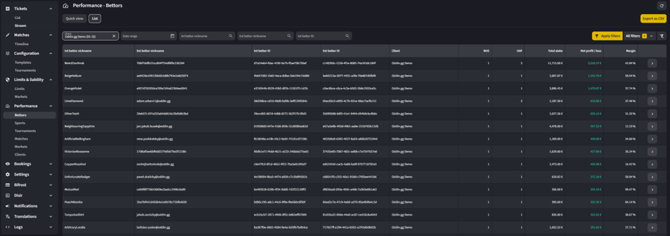
Bettors
Quick view: the view of the most winning and losing accounts with the ability to open their details.
List: the list of all bettors which can be filtered, and each entry opened for detailed information.
- Total stake: the total amount the bettor has bet
- Net profit / loss: the total amount the bettor has lost/won – negative means the bettor has won, positive means the bettor has lost (in terms of the client)
- Margin: % of how much the bettor has lost/won out of their total stake
- > Bettor details: detailed statistics of the bettor and extra tools to manage the bettor
- Detail:
- BOS – can be set to limit the bettor (values between 0.01–1 representing the decreased share of the liability the bettor’s participation is reduced to)
- Over ask factor (OAF) – can be set for VIP users to increase their limits (values between 1–10, representing the multiplier of the liability)
- Live delay – the amount of time (seconds) before the ticket is accepted on live selections for this bettor
- Prematch delay – the amount of time (seconds) before the ticket is accepted on prematch selections for this bettor
- Oddin.gg labels – a label chosen by Oddin.gg (from the list of available labels)
- Client labels – a label chosen by client (from the list of available labels)
- Notes – notes made by Oddin.gg or the client
- Constraints (no.): detailed bettor limitations of BOS, OAF, prematch delay, and live delay across a specific sport, tournament, market type, and/or market variant
- Lists: the list of bettor’s tickets
- Detail:
ℹ For VIP bettors with Over Ask Factor (OAF) higher than 3, there is an additional multiplicative reduction factor to the risk limit calculations. It reduces the overall bet liability value and allows VIP bettors to bet more freely without draining away shared liability pools (like market or event liability) from other casual bettors. The value of this new factor is tied to OAF and is divided into 5 ranges:
- 1st Range – OAF 1 – 3 = factor 1 – without any changes
- 2nd Range – OAF 3.1 – 5 = factor 0.75
- 3rd Range – OAF 5.1 – 7 = factor 0.5
- 4th Range – OAF 7.1 – 9.9 = factor 0.1
- 5th Range – OAF 10 – 10 = factor 0.01
This new factor is working multiplicatively with the standalone OAF.
Sports
- Sport statistics and detailed sport statistics.
Tournaments
- Tournament statistics and detailed tournament statistics.
Matches
- Match statistics and detailed match statistics.
Markets
- Market statistics and detailed market statistics.
Clients
- Overall statistics of the client account and detailed client statistics.
Settings (available to ALL clients)
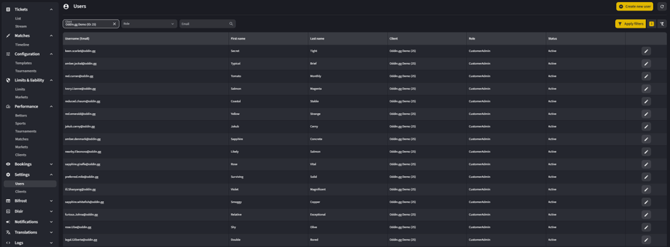
Users
All your account’s back-office users with their roles and status. Each user also has an "Integration only" setting—the default is false, but if it is set to true, a user will only be able to access the Integration back-office. This feature can only be set by Oddin.gg administrators.
Available access to back-office sections by product and user role:
| OTS clients | FEED clients | IFRAME clients | CustomerAdmin | Customer | CustomerTrader | |
| TICKETS | TRUE | FALSE | TRUE | VISIBLE AND EDITABLE | VISIBLE AND EDITABLE | VISIBLE AND NOT EDITABLE |
| List | TRUE | FALSE | TRUE | VISIBLE AND EDITABLE | VISIBLE AND NOT EDITABLE | VISIBLE AND NOT EDITABLE |
| Stream | TRUE | FALSE | TRUE | VISIBLE AND EDITABLE | VISIBLE AND EDITABLE | VISIBLE AND NOT EDITABLE |
| MATCHES | TRUE | TRUE | TRUE | VISIBLE AND EDITABLE | VISIBLE AND EDITABLE | VISIBLE AND NOT EDITABLE |
| Timeline | TRUE | TRUE | TRUE | VISIBLE AND EDITABLE | VISIBLE AND EDITABLE | VISIBLE AND NOT EDITABLE |
| CONFIGURATION | TRUE | TRUE | TRUE | VISIBLE AND EDITABLE | VISIBLE AND EDITABLE | NOT VISIBLE |
| Templates | TRUE | TRUE | TRUE | VISIBLE AND EDITABLE | VISIBLE AND EDITABLE | NOT VISIBLE |
| Tournaments | TRUE | TRUE | TRUE | VISIBLE AND EDITABLE | VISIBLE AND EDITABLE | NOT VISIBLE |
| LIMITS & LIABILITY | TRUE | FALSE | TRUE | VISIBLE AND EDITABLE | NOT VISIBLE | NOT VISIBLE |
| Limits | TRUE | FALSE | TRUE | VISIBLE AND EDITABLE | NOT VISIBLE | NOT VISIBLE |
| Pendings | TRUE | FALSE | TRUE | VISIBLE AND EDITABLE | NOT VISIBLE | NOT VISIBLE |
| PERFORMANCE | TRUE | FALSE | TRUE | VISIBLE AND EDITABLE | VISIBLE AND EDITABLE | VISIBLE AND NOT EDITABLE |
| Bettors | TRUE | FALSE | TRUE | VISIBLE AND EDITABLE | VISIBLE AND EDITABLE | VISIBLE AND NOT EDITABLE |
| Sports | TRUE | FALSE | TRUE | VISIBLE AND EDITABLE | VISIBLE AND EDITABLE | NOT VISIBLE |
| Tournaments | TRUE | FALSE | TRUE | VISIBLE AND EDITABLE | VISIBLE AND EDITABLE | NOT VISIBLE |
| Matches | TRUE | FALSE | TRUE | VISIBLE AND EDITABLE | VISIBLE AND EDITABLE | NOT VISIBLE |
| Markets | TRUE | FALSE | TRUE | VISIBLE AND EDITABLE | VISIBLE AND EDITABLE | NOT VISIBLE |
| Clients | TRUE | FALSE | TRUE | VISIBLE AND EDITABLE | VISIBLE AND EDITABLE | NOT VISIBLE |
| SETTINGS | TRUE | TRUE | TRUE | VISIBLE AND EDITABLE | VISIBLE AND NOT EDITABLE | NOT VISIBLE |
| Users | TRUE | TRUE | TRUE | VISIBLE AND EDITABLE | VISIBLE AND NOT EDITABLE | NOT VISIBLE |
| Clients | TRUE | TRUE | TRUE | VISIBLE AND EDITABLE | VISIBLE AND NOT EDITABLE (Details only) |
NOT VISIBLE |
| BIFROST | FALSE | FALSE | TRUE | VISIBLE AND EDITABLE | VISIBLE AND EDITABLE | VISIBLE AND EDITABLE |
| Settings | FALSE | FALSE | TRUE | VISIBLE AND EDITABLE | VISIBLE AND NOT EDITABLE | NOT VISIBLE |
| Failed transactions | FALSE | FALSE | TRUE | VISIBLE AND EDITABLE | VISIBLE AND EDITABLE | NOT VISIBLE |
| Sports | FALSE | FALSE | TRUE | VISIBLE AND EDITABLE | VISIBLE AND EDITABLE | VISIBLE AND EDITABLE |
| DISIR* | FALSE | FALSE | FALSE | VISIBLE AND EDITABLE | VISIBLE AND EDITABLE | NOT VISIBLE |
| Settings* | FALSE | FALSE | FALSE | VISIBLE AND EDITABLE | VISIBLE AND EDITABLE | NOT VISIBLE |
| TRANSLATIONS | TRUE | TRUE | TRUE | VISIBLE AND EDITABLE | VISIBLE AND EDITABLE | VISIBLE AND EDITABLE |
| Sports | TRUE | TRUE | TRUE | VISIBLE AND EDITABLE | VISIBLE AND EDITABLE | VISIBLE AND EDITABLE |
| Tournaments | TRUE | TRUE | TRUE | VISIBLE AND EDITABLE | VISIBLE AND EDITABLE | VISIBLE AND EDITABLE |
| Markets | TRUE | TRUE | TRUE | VISIBLE AND EDITABLE | VISIBLE AND EDITABLE | VISIBLE AND EDITABLE |
| Selections | TRUE | TRUE | TRUE | VISIBLE AND EDITABLE | VISIBLE AND EDITABLE | VISIBLE AND EDITABLE |
| Bifrost market groups | TRUE | TRUE | TRUE | VISIBLE AND EDITABLE | VISIBLE AND EDITABLE | VISIBLE AND EDITABLE |
| Bifrost | TRUE | TRUE | TRUE | VISIBLE AND EDITABLE | VISIBLE AND EDITABLE | VISIBLE AND EDITABLE |
| Disir | TRUE | TRUE | TRUE | VISIBLE AND EDITABLE | VISIBLE AND EDITABLE | VISIBLE AND EDITABLE |
| Teams | TRUE | TRUE | TRUE | VISIBLE AND EDITABLE | VISIBLE AND EDITABLE | VISIBLE AND EDITABLE |
| Players | TRUE | TRUE | TRUE | VISIBLE AND EDITABLE | VISIBLE AND EDITABLE | VISIBLE AND EDITABLE |
| Thor | TRUE | TRUE | TRUE | VISIBLE AND EDITABLE | VISIBLE AND EDITABLE | VISIBLE AND EDITABLE |
| Betting rules | TRUE | TRUE | TRUE | VISIBLE AND EDITABLE | VISIBLE AND EDITABLE | VISIBLE AND EDITABLE |
| LOGS | TRUE | TRUE | TRUE | VISIBLE AND EDITABLE | VISIBLE AND EDITABLE | NOT VISIBLE |
| Developers | TRUE | TRUE | TRUE | VISIBLE AND EDITABLE | VISIBLE AND EDITABLE | NOT VISIBLE |
| User activity | TRUE | TRUE | TRUE | VISIBLE AND EDITABLE | NOT VISIBLE | NOT VISIBLE |
| STREAMS | TRUE | TRUE | TRUE | PAID MODULE | PAID MODULE | PAID MODULE |
* Only visible to the clients with added Widgets
Clients
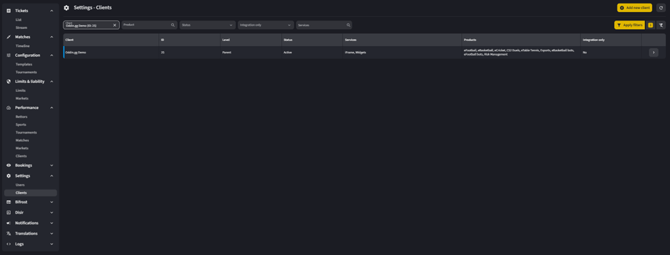
The list of your client accounts and subaccounts, with basic information about each:
- Client: The name of the account
- ID: ID of the account
- Level: Parent (main account) or Brand (sub-account)
- Status: Active or Disabled
- Services: Oddin.gg services available through the account
- Products: Oddin.gg products available through the account
- Integration only: Yes or No – if the account’s products and services are only available in the Integration environment
- > Client details: detailed information on the client account
- Info: all available information about the client account within Oddin.gg system
- Tokens: the list of tokens used to access Oddin.gg services
- IP Whitelisting: the client’s IPs whitelisted to allow access to Oddin.gg services
Bifrost (available to iFrame clients only)
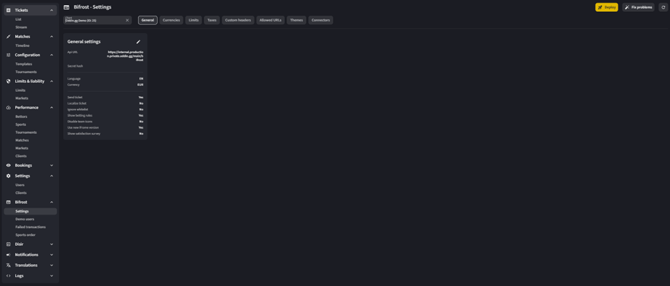
Settings
- General: basic iFrame settings
- Api URL – URL of the client's iFrame Wallet API
- Secret hash—optional, a hash secret that is used as another layer of protection; we can send the client a hmac-sha256 hash of the user token in the “Authorization” header to be compared with the hash they generate on their side
- Language – the default language of the iFrame if the client does not specify it in the iFrame init script request
- Currency – the default currency displayed in the iFrame if the client does not specify it in the iFrame init script request
- Send ticket—YES/NO—if the client would like to receive the tickets placed in the iFrame also through the API
- Localize ticket – YES/NO – if the client would like to receive the API tickets in a localised format
- Show betting rules—YES/NO—display the link to the GEneral betting rules in the iFrame
- Disable Team icon—YES/NO—if the client would like to disable the icons of the Esports teams in the iFrame, for example, due to copyright concerns
- Currencies: a list of supported currencies with decimal place/rounding settings
- Limits: front-end betting limits for the iFrame (optional)
- Taxes: ability to set up the display of taxes if needed
- Custom headers: ability to optionally set up custom HTTP request headers (additional security), for example, X-API-Key
- Allowed URLs: domains where the iFrame is allowed to be displayed
Failed transactions
The internal list of failed iFrame transactions, with the possibility to manually retry some of them.
Sports order
The list of sports as displayed on the iFrame menu. The order of the sports can be changed through an easy-to-use interface, simply by dragging individual entries to their desired location.
Disir (available to Widgets clients only)

Settings
- General: basic Widgets settings
- Disable Team icon – YES/NO: if the client would like to disable the icons of the eSports teams in the Widgets due to copyright concerns (for example, should be "YES" if the client is offering the iFrame in Poland)
- Language: the default language of the Widgets if the client does not specify it in the configuration when loading the Widgets
- Allowed URLs: whitelisted domains where the Widgets are allowed to be displayed
Logs (available to ALL clients)
Developers
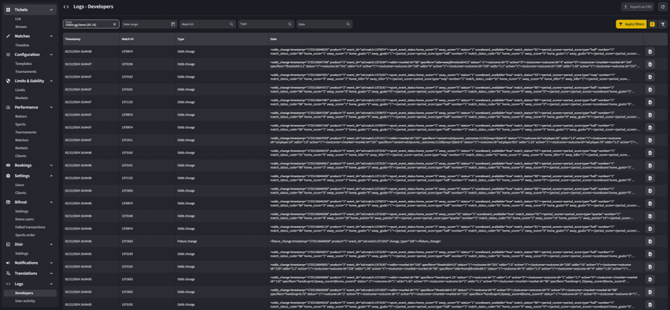
XML Odds Feed logs of the odds and events sent by the Oddin.gg server to your client account.
Can be filtered by:
- Date Range: the filtered range when the messages were generated
- Match ID: the ID of the match
- Type: the type of feed message: Alive, Odds change, Bet settlement, Rollback bet settlement, Fixture change, Bet cancel, Rollback bet cancel, Snapshot complete
- Data: a custom search keyword/phrase
User activity
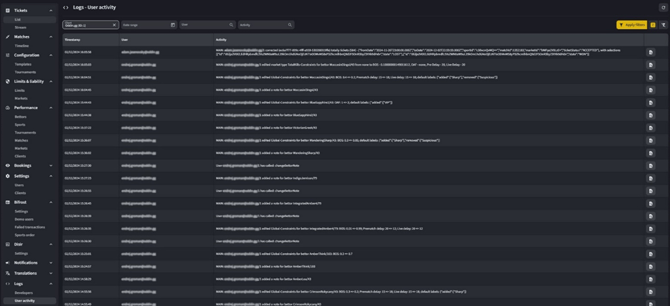
All logged activity of your back-office users.